
上海信弘智能科技有限公司,信弘,智能,信弘智能科技,Elite Partner,Omniverse,智能科技,NVIDIA GPU,NVIDIA DGX, vGPU,TESLA,QUADRO,AI,AI培训,AI课程,人工智能,解决方案,DLI,Mellanox,IB, 深度学习,RTX,IT,ORACLE 数据库,ORACLE云服务,深度学习学院,bigdata,大数据,数据安全备份,鼎甲,高性能计算, 虚拟机,虚拟桌面,虚拟软件,硬件,软件,加速计算,HPC,超算,服务器,虚拟服务器,IT咨询,IT系统规划,应用实施,系统集成
Reconstruct scenes in NVIDIA Isaac Sim using just a smartphone
Building realistic 3D environments for robot simulation has often been very time-consuming and labor-intensive. Now, with NVIDIA Omniverse NuRec, you can do it all using just a smartphone.
This streamlined real-world simulation workflow transforms photos taken with a phone into interactive scenes ready for robot use. The entire process is simple: image capture, COLMAP processing, 3DGUT reconstruction, USDZ export, and finally, loading into NVIDIA Isaac Sim. This workflow replaces previous, time-consuming photogrammetry processes with a simple and reproducible digital twin path, enabling rapid driving, path planning, and testing.
This article walks you through how it's done: from capturing images with a phone, to 3D scene reconstruction using 3DGUT, and then importing the reconstructed scene into NVIDIA Isaac Sim and configuring a robot.
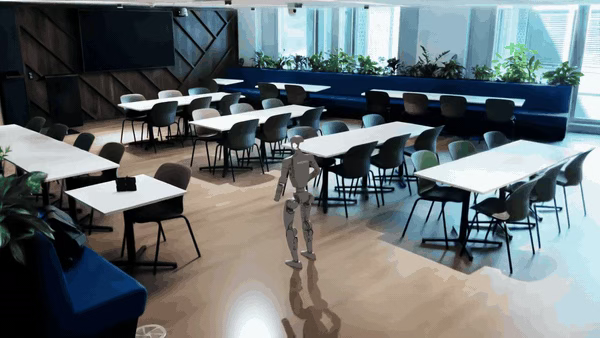
Step 1: Capture Real-World Scene Data
Take photos of the physical environment you want to reconstruct. No special equipment is needed; just walk around the scene and capture images using your smartphone.
Step 2: Generate Sparse Reconstruction using COLMAP
After taking the photos, the next step is to compute the 3D structure and determine camera positions from these images. COLMAP will generate a sparse point cloud of the scene and estimate the camera parameters for each photo. Once COLMAP processing is complete, you will have the scene's sparse point cloud data and camera position data for all images.
Step 3: Densely Train the 3D Model using 3DGUT and Export to USD
Specific steps include: setting up the 3DGUT environment, cloning the 3DGUT repository, preparing the COLMAP output, running the 3DGUT training script, and exporting the USDZ. After running the command, 3DGUT will begin training. It reads the images and COLMAP data and continuously optimizes the 3D representation. The time required for this process depends on the complexity of the scene and GPU performance. Once the reconstructed scene is exported in USD format, it is ready for use in Isaac Sim.
Step 4: Deploy the Reconstructed Scene in Isaac Sim and Add a Robot Model
Specific steps include: launching Isaac Sim 5.0 or later with NuRec/3DGUT support, importing the USD scene, adding a ground plane for physics, inserting a robot model from the Isaac Sim asset library, and finally, clicking 'Play' to view the simulation.